
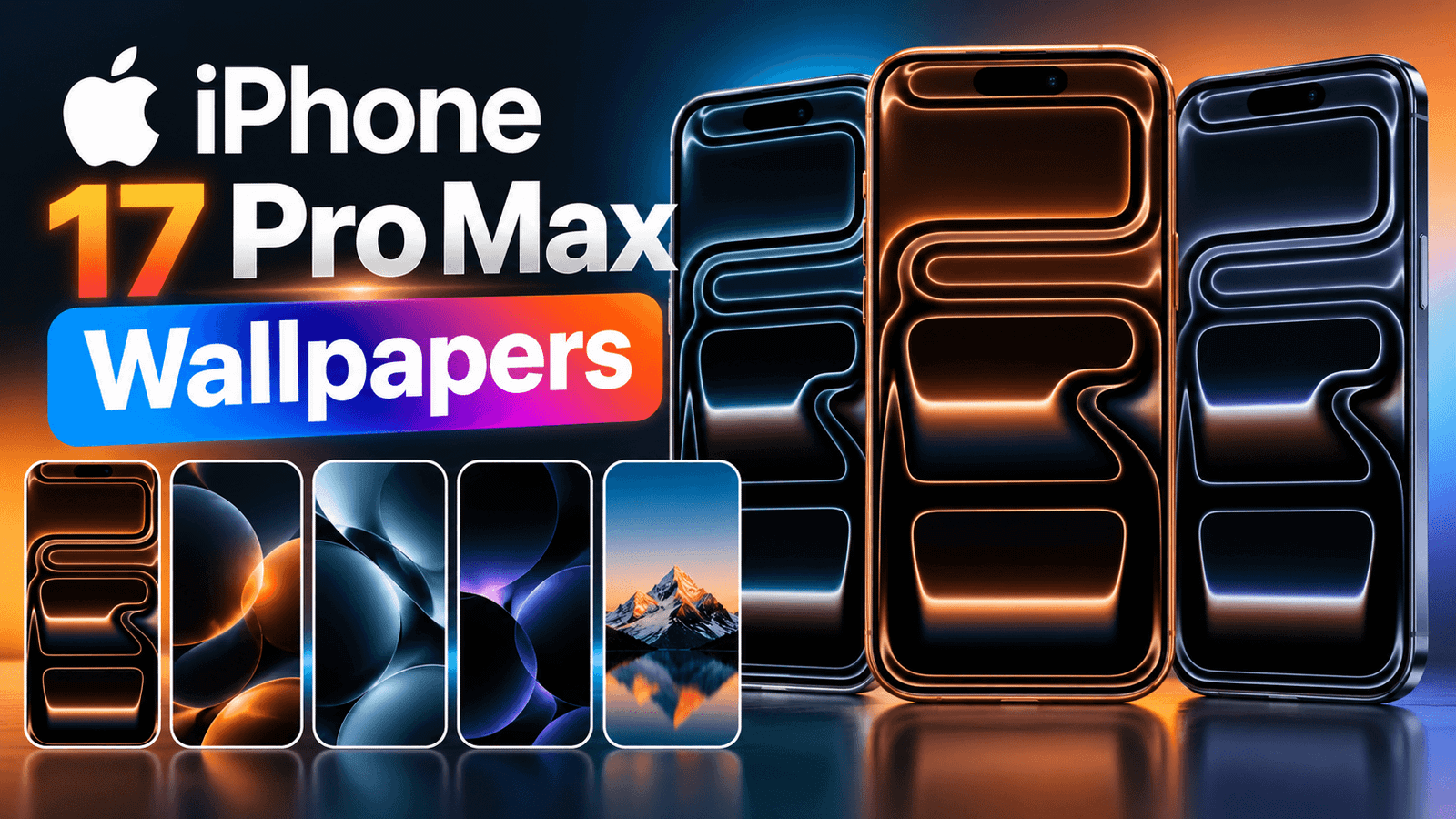
New phone, same boring wallpaper? Let’s fix that.
I made 12 wallpapers for the iPhone 17 Pro Max Wallpapers, all free, all high resolution, and none of them stamped with a watermark. There are orange ones that match the orange finish, deep blue ones, dark minimal designs for OLED, and a few clean light options.
Tap any wallpaper to see it full size, then press and hold to save it.
Download the Wallpapers
- Cosmic Orange Abstract
- Deep Blue Waves
- Midnight Black Minimal
- Silver Light Lines
- Black
- Dark Carbon Texture
- Blue Neon Curves
- Soft Grey Marble
- Sunset Orange Blur
- Deep Space Green
- Electric Burgundy Flow
- Electric Blue Flow
Which iPhones Do These Work On?
All of them work on the iPhone 17 Pro Max, which is what they’re sized for. They also look great on the iPhone 17 Pro and the standard iPhone 17, because the files are high resolution and your phone simply scales them down rather than stretching them up.
If you have an older iPhone, they’ll still work. The iPhone 16, 15, 14 and 13 series all use the same tall screen shape, so you may just need to pinch and reposition slightly when setting one.
Match Your Wallpaper to Your iPhone’s Colour
This is the small detail that makes a phone look properly put together, and it’s why I made the set in colour groups.
Orange wallpapers. If you picked the orange finish, the orange gradient and sunset designs in the set tie the whole thing together. The colour carries over from the frame onto the screen, and it looks deliberate rather than random.
Deep blue wallpapers. The blue designs do the same for the blue model, and the neon blue one looks especially good at night.
Black and dark wallpapers. These suit any colour, and they’re the safest choice if you change your mind often. Dark wallpapers also keep your app icons easy to read.
Light and silver wallpapers. The white minimal and marble designs look clean and calm, and they pair nicely with the silver finish.
Why Dark Wallpapers Are Worth Trying
The iPhone 17 Pro Max uses an OLED screen, which means black pixels are switched off completely instead of being lit up. A genuinely dark wallpaper therefore uses a little less battery than a bright one.
The difference isn’t dramatic, so don’t expect a miracle. But between a jet-black wallpaper and a bright white one, the dark one is the better choice for battery, and it also makes your lock screen clock stand out beautifully.
How to Set a Wallpaper on iPhone 17
Step 1: Tap a wallpaper above to open it full size, then press and hold the image and choose Save to Photos.
Step 2: Open Settings → Wallpaper → Add New Wallpaper.
Step 3: Tap Photos at the top and pick the one you saved.
Step 4: Pinch with two fingers to zoom in or out and position it the way you want.
Step 5: Tap Add, then choose Set as Wallpaper Pair to apply it to both the lock screen and home screen.
You can also do it straight from the Photos app: open the image, tap the share button and choose Use as Wallpaper.
Make Your Lock Screen Look Better

Turn off the home screen blur. iPhone blurs your home screen wallpaper by default, which is why it often looks duller than the lock screen. Go to Settings → Wallpaper, tap Customise under the home screen, and switch the blur off. The difference is bigger than most people expect.
Use the depth effect. If a wallpaper has a clear subject, your iPhone can tuck the clock behind part of it for a layered 3D look. It only works when the subject is positioned right, so don’t zoom in too far, and keep the top of the image fairly clean.
Mind the Dynamic Island. Busy detail right at the top of the screen fights with the Dynamic Island and the clock. All the wallpapers in this set leave that area calmer on purpose.
Pick a different lock and home wallpaper. Instead of a pair, try a dark one on the home screen so your icons pop, and a more colourful one on the lock screen.
Tips for Downloading
Always save from this page. If a friend forwards you a wallpaper on WhatsApp, it arrives compressed and looks soft on your screen. Send them the link instead.
Don’t zoom in too much. Over-zooming both blurs the image and switches the depth effect off.
Save a few and rotate them. It takes ten seconds to change, and it keeps the phone feeling new.
Frequently Asked Questions
Are these iPhone 17 wallpapers free?
Yes, all 12 are completely free. No sign-up, no app, no watermark.
Will these work on iPhone 17 Pro and the regular iPhone 17?
Yes. They’re high resolution, so smaller iPhones scale them down and they stay sharp.
Can I use them on Android?
Yes. They’re tall images, so they fit most Android phones too. You may need to adjust the zoom.
Why does my wallpaper look blurry?
Either you zoomed in too far when setting it, or you saved a compressed copy from a messaging app. Download it again from this page.
Do you have the official Apple wallpapers?
No, and I won’t host those, because Apple’s own wallpapers are copyrighted. Everything here is my own original design, which is why you can use it freely.
Will you add more?
Yes, I add new sets regularly. Bookmark this page and check back.
Final Thoughts
A new wallpaper is the cheapest upgrade your phone will ever get. Pick one that matches your iPhone’s colour, turn off the home screen blur, and the whole thing looks considered instead of accidental.
Which one did you go for? Tell me in the comments, and if you want a specific colour or style, ask and I’ll make it for the next set.
Looking for more? I also have iPhone 18 Pro Max wallpapers and a full wallpaper collection for other phones.