
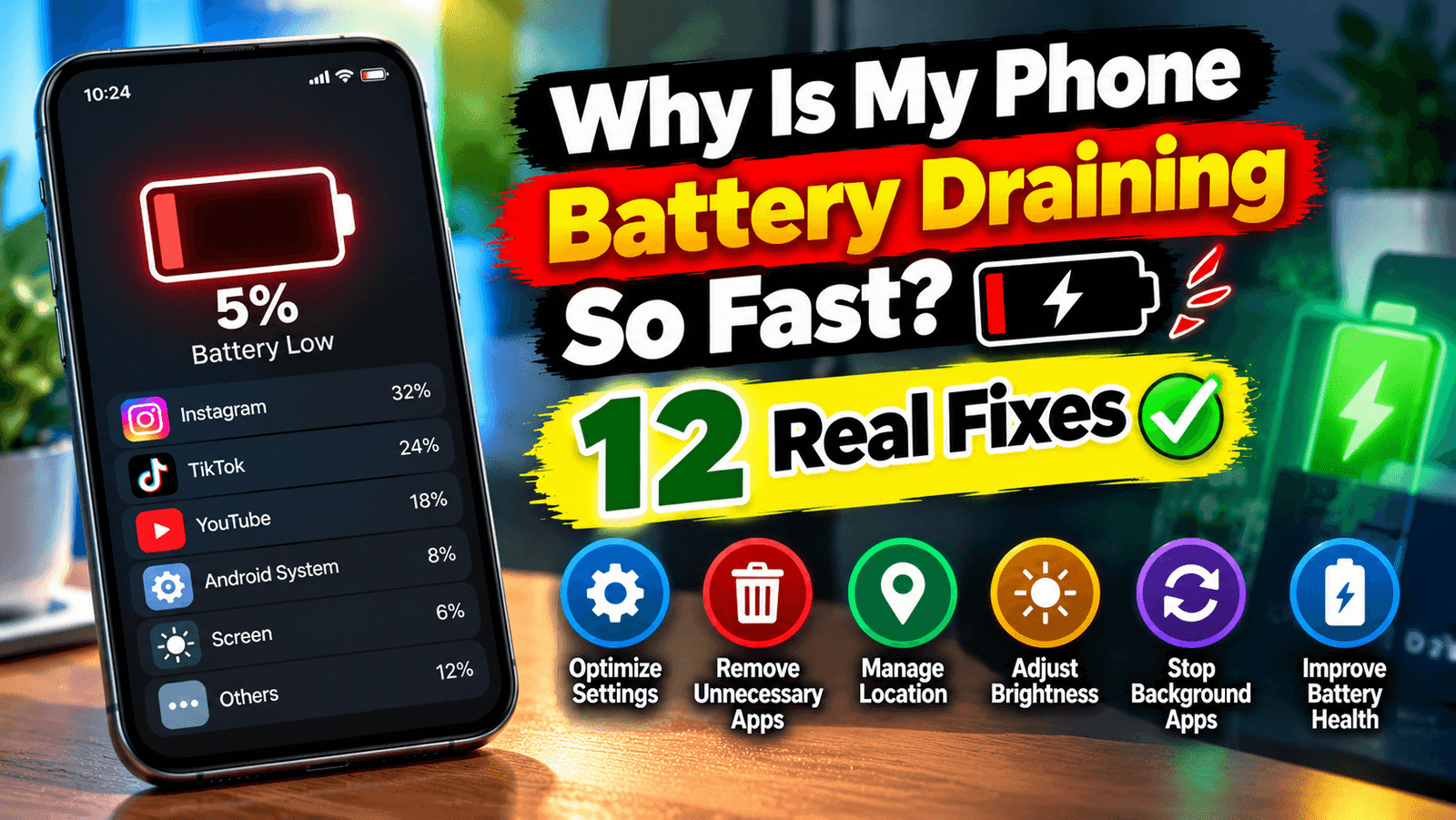
You charged it to 100% at breakfast. By 2pm it’s at 30% and you’ve barely touched it.
Before you start blaming the battery, here’s something worth knowing: most of the time it isn’t the battery at all. It’s one app, one setting, or one habit quietly draining power in the background.
This guide shows you how to find the actual culprit on your phone, and then what to do about it. Work through it in order, because the first step saves you from randomly changing settings that were never the problem.
Step 1: Find Out What’s Actually Draining It
Don’t skip this. Everyone wants to jump to the fixes, but your phone already knows what’s eating the battery, so just ask it.
On Android: open Settings → Battery, then look for battery usage. You’ll see a list of apps with percentages next to them.
On iPhone: open Settings → Battery and scroll down. You can switch between the last 24 hours and the last 10 days, and tap “Show Activity” to see screen time versus background time for each app.
Now read the list properly, because this is where it gets useful.
If the top item is your screen or display, your battery is fine. You’re just using the phone a lot. Skip to the brightness and screen timeout fixes below.
If one app you barely open is near the top, you’ve found your problem. That app is doing things in the background it shouldn’t be.
If an app shows high “background” time but low “screen” time, same thing. It’s working while you’re not even using it.
This one check solves most battery mysteries in about thirty seconds.

The 12 Fixes
1. Deal with the app at the top of the list
If a specific app is draining power in the background, you have three options, from gentle to ruthless:
- Restrict its background activity. On Android, long-press the app icon → App info → Battery → choose Restricted. On iPhone, Settings → General → Background App Refresh, and turn it off for that app.
- Turn off its location access unless it genuinely needs it. Settings → Privacy/Location → pick the app → set it to “While Using” instead of “Always”.
- Uninstall it. If you don’t use it much anyway, this is the fastest fix.
In my experience the usual offenders are social media apps, shopping apps, and anything that constantly syncs or tracks location.
2. Turn down the brightness
Your screen is almost always the biggest single drain on a phone. Auto brightness helps, but it tends to run brighter than you need indoors.
Try dropping it manually one notch below where it feels comfortable. You’ll stop noticing within a day, and the difference over a full day is real.
3. Shorten your screen timeout
If your screen stays on for 2 minutes every time you put the phone down, that adds up fast across a day. Set it to 30 seconds. Settings → Display → Screen timeout.
4. Use dark mode if you have an OLED screen
Most modern phones (all recent iPhones, and most mid-range and flagship Androids) use OLED screens, where black pixels are switched off completely rather than lit up.
Dark mode plus a genuinely dark wallpaper saves a measurable amount of power on these screens. On an older LCD phone it makes no difference, so don’t bother.
5. Turn off background app refresh for apps that don’t need it
Does your shopping app really need to update itself while it’s closed? Probably not.
Go through the list and leave it on only for things where fresh data actually matters, like messaging and email.
6. Check for a bad update
If the drain started suddenly after an app or system update, that’s your answer. App updates introduce bugs all the time.
Check whether a newer version is available, and if not, restrict that app’s background activity until the next update arrives.
7. Turn off what you’re not using
Bluetooth, Wi-Fi, hotspot, NFC, location. Each one costs a little, and the one that costs the most is usually hotspot left on by accident.
Honestly, Bluetooth for earbuds barely matters these days. Hotspot running unnoticed for three hours absolutely does.
8. Watch out for weak signal areas
This one surprises people. When your phone has one bar, it increases transmission power trying to hold onto the network, and that drains the battery much faster than a strong signal does.
If you’re somewhere with terrible reception all day, like a basement office, switching to Wi-Fi calling or putting the phone in airplane mode when you don’t need it genuinely helps.
9. Turn off always-on display
It’s a lovely feature and it costs you battery all day long. If you’re struggling to get through the day, this is an easy thing to sacrifice.
10. Cut down widgets and live wallpapers
Animated wallpapers and widgets that constantly refresh (weather, news, stocks) keep waking your phone up. A static wallpaper and fewer widgets makes a noticeable difference on older phones.
11. Check your battery’s health
Batteries wear out. It’s normal, and nothing you did caused it.
On iPhone: Settings → Battery → Battery Health & Charging. If maximum capacity is below about 80%, the battery is genuinely worn and a replacement will fix what no setting can.
On Android: it varies by brand. Samsung has it in Settings → Battery and device care → Diagnostics. Some brands don’t show it at all, in which case the rough rule is that batteries start noticeably declining after about two years of daily charging.
12. Restart your phone
Simple, boring, and it works more often than it should. A stuck process can sit there draining power until the phone is restarted. If your battery suddenly started dying fast with no other explanation, try this before anything else.
Habits That Make Batteries Last Longer
These won’t fix today’s problem, but they’ll keep your battery healthier over the next two years.
Don’t leave it at 100% all day. Lithium batteries are happiest between about 20% and 80%. If your phone has an optimised or limited charging option, turn it on.
Keep it cool. Heat is what genuinely kills batteries. Don’t leave your phone on a car dashboard in the sun, and take the case off if it gets hot while fast charging.
Avoid cheap no-name chargers. A poor quality charger can deliver unstable power, which is bad for the battery and occasionally dangerous.
Don’t panic about reaching 0%. Occasionally is fine. Doing it every day isn’t ideal, but it won’t destroy your phone either.
One myth worth clearing up: closing all your apps does not save battery. On both Android and iOS, force-closing apps you’ll open again later actually uses more power, because the phone has to load them from scratch. Let the system manage memory, that’s its job.
When It’s Actually the Battery
If you’ve worked through everything above and your phone still dies in half a day, and it’s more than two years old, the battery is probably worn out.
Signs it’s genuinely the hardware:
- Battery health below 80%
- Phone shutting down suddenly at 20% or 30%
- Getting hot while doing almost nothing
- Any swelling that makes the screen or back cover lift (stop using it and get it replaced immediately)
A battery replacement is far cheaper than a new phone and usually makes the device feel new again.
Frequently Asked Questions
Why did my battery suddenly start draining faster?
Usually a recent app or system update, or an app that started running in the background. Check your battery usage screen first.
Does dark mode really save battery?
On OLED screens, yes. On LCD screens, no.
Does closing apps save battery?
No. This is the most common battery myth. Leave them alone.
Does fast charging damage my battery?
It generates more heat, and heat is what wears batteries down. For daily use it’s fine, but slower overnight charging is gentler long term.
Is it bad to use my phone while charging?
It’s safe, but it makes the phone hotter, which isn’t ideal for battery health over time.
How long should a phone battery last?
Most phones hold around 80% of their original capacity after roughly 500 full charge cycles, which for most people is about two years.
Final Thoughts
Start with the battery usage screen. Seriously. Nine times out of ten it points straight at one app, and the fix takes a minute.
If nothing on the list makes a difference and your phone is a couple of years old, you’ve probably just got a tired battery, and replacing it is the cheapest upgrade you’ll ever make.
What was draining yours? Tell me in the comments, and if the list didn’t help, say which phone you have and I’ll try to help you work it out.