
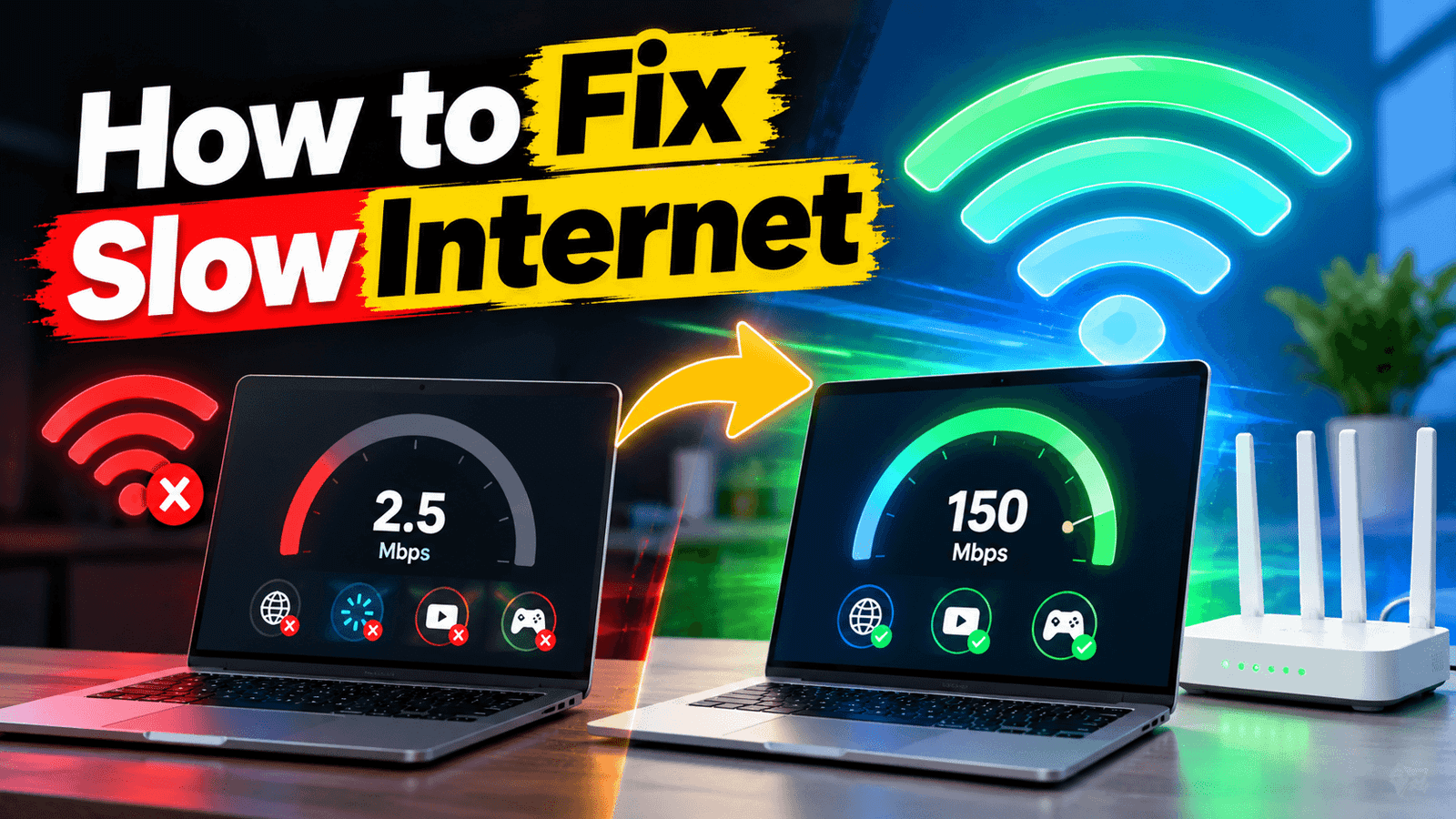
You’re mid-video call and everyone turns into a pixelated robot. Or the show you’re watching stops to buffer at the worst possible moment. Slow internet is maddening, especially when you’re paying for a plan that’s supposed to be fast.
The good news is that most slow internet problems have nothing to do with your provider. They’re caused by something in your own home, and you can usually fix them in under 10 minutes without calling anyone.
Here’s how to find the real cause and fix it, starting with the quickest wins.
Quick answer: Restart your modem and router (unplug both for 60 seconds), run a speed test to see what you’re actually getting, move your router to a central open spot, switch to the 5 GHz Wi-Fi band, and disconnect devices you’re not using. If speeds are still far below your plan, the problem is likely your router’s age or your provider’s line.
Step 1: Find Out How Slow It Actually Is
Before changing anything, get a number. Otherwise you’re guessing.
Go to speedtest.net or fast.com and run a test. Write down the download speed, upload speed, and ping.
Now compare it to what you’re paying for. Check your bill or your provider’s app for your plan speed. A few things to keep in mind:
- Getting 80% or more of your plan speed over Wi-Fi is normal and healthy.
- Getting half or less means something is wrong.
- Wi-Fi is always slower than a cable. That’s physics, not a fault.
The most useful test: If you can, plug a laptop directly into the router with an Ethernet cable and run the test again.
- Cable is fast, Wi-Fi is slow → your Wi-Fi is the problem. Fixes 3 to 9 are for you.
- Both are slow → the problem is your router, your line, or your provider. Jump to fixes 10 to 14.
This single test saves you hours of fixing the wrong thing.

Step 2: The 14 Fixes
1. Restart your modem and router (the right way)
Yes, everyone says this. But most people do it wrong.
Unplug both your modem and router from power. Wait a full 60 seconds, not 5. This lets the hardware fully clear its memory and drop stale connections. Plug the modem back in first, wait until its lights are steady (usually 2 minutes), then plug in the router.
This alone fixes a surprising number of slowdowns, especially if your router has been running for weeks without a break.
2. Check if it’s actually your internet
Before blaming your connection, open a different website or app. If only Netflix is slow but everything else works, Netflix is having a bad day, not you.
Also check downdetector.com or your provider’s app for an outage in your area. If half your neighbourhood is down, no amount of router fiddling will help.
3. Move your router
This is the most underrated fix in this entire list.
Wi-Fi signal gets weaker through walls, floors, metal and water. If your router is sitting on the floor, in a cabinet, behind the TV, or in a corner of the house, you’re losing a huge amount of speed.
Put your router:
- In a central spot in your home, not at one end
- Up high, like on a shelf, not on the floor
- Out in the open, not inside a cupboard or behind furniture
- Away from microwaves, cordless phones, baby monitors, fish tanks and thick metal objects
Antennas work best pointing straight up for single-floor coverage. If you have a two-storey home, try one antenna up and one sideways.
4. Switch to the 5 GHz band
Most routers broadcast two networks, and they often have names like “MyWiFi” and “MyWiFi_5G”. They are not the same:
- 2.4 GHz travels further and through walls better, but it’s slower and very crowded.
- 5 GHz is much faster, but the signal doesn’t reach as far.
If your device is near the router, always connect to the 5 GHz network. Many phones and laptops stubbornly stick to 2.4 GHz because they connected to it once, so switch manually in your Wi-Fi settings.
If you have a newer router with Wi-Fi 6E or Wi-Fi 7, you may also see a 6 GHz network. That one is even faster and almost empty, but it needs a newer device and a very short distance.
5. Change your Wi-Fi channel
In an apartment building, your neighbours’ routers are all shouting over each other on the same channels. This is one of the biggest causes of slow Wi-Fi in cities.
Log into your router’s settings (usually by typing 192.168.1.1 or 192.168.0.1 into your browser; the login details are often printed on a sticker on the router). Look for Wireless settings and change the channel.
On 2.4 GHz, only channels 1, 6 and 11 don’t overlap, so pick whichever of those is least crowded. On 5 GHz, try any of the higher channels. If your router has an “Auto” option, set it to Auto and reboot, which often sorts it out by itself.
6. See who else is using your connection
One person streaming in 4K or downloading a game can eat your entire connection.
Check your router app or settings for a list of connected devices. If you see devices you don’t recognise, change your Wi-Fi password immediately and pick WPA2 or WPA3 security.
If your router has QoS (Quality of Service), turn it on and give priority to whatever matters most to you, like video calls or gaming.
7. Kill the background bandwidth hogs
Your internet might be fine, but something on your own device is quietly eating it:
- Windows or macOS updates downloading in the background
- Cloud backups syncing (Google Drive, iCloud, OneDrive, Dropbox)
- Game launchers updating (Steam, Epic, Xbox app)
- A phone in your pocket uploading photos
- Too many browser tabs with auto-playing video
On Windows, press Ctrl + Shift + Esc, open the Performance tab, and watch your network usage. On Mac, use Activity Monitor and the Network tab. You’ll often find the culprit in 30 seconds.
8. Update your router’s firmware
Router firmware is the software that runs the device, and old firmware means bugs, security holes, and performance problems.
Log into your router settings, look for Firmware or System Update, and install anything available. Newer routers with an app usually do this automatically, but it’s worth checking. While you’re in there, set a scheduled weekly reboot if the option exists.
9. Consider how old your router is
If your router is more than 4 or 5 years old, it may simply not be able to deliver the speeds you’re paying for.
Here’s the rough guide:
- Wi-Fi 4 (802.11n): ancient, replace it
- Wi-Fi 5 (802.11ac): fine for most homes under 300 Mbps
- Wi-Fi 6 / 6E: great for busy homes with lots of devices
- Wi-Fi 7: newest, only worth it with a very fast plan
Also worth knowing: the router your provider rents to you is often basic hardware, and you’re paying a monthly fee for it. Buying your own decent router usually pays for itself within a year and performs better.
10. Check your cables and splitters
Old or damaged cables cause slowdowns that look exactly like provider problems.
- Make sure the coax cable into your modem is tight, and remove any splitters you don’t absolutely need. Every splitter weakens the signal.
- If you use Ethernet, check the cable type printed on it. Cat5 caps at 100 Mbps. You want Cat5e, Cat6 or better.
- Look for bent, pinched or chewed cables, especially if you have pets.
11. Change your DNS
If pages take forever to start loading but downloads are fast once they begin, DNS is often the culprit.
Your provider’s DNS can be slow. Switching to a free public one usually makes browsing feel noticeably snappier:
- Cloudflare: 1.1.1.1 and 1.0.0.1
- Google: 8.8.8.8 and 8.8.4.4
You can change this in your router settings (which covers every device at once) or in the network settings of a single device.
To be clear, this won’t increase your actual speed. It just makes websites start loading faster, which honestly feels like a speed boost in everyday use.
12. Test for throttling
Some providers slow down certain traffic, like video streaming or torrents, and some slow you down after you pass a monthly data cap.
To test: run a speed test normally, then run it again with a VPN turned on. If your speed is clearly better with the VPN, your traffic is probably being throttled. Also check your provider’s app for a data cap you might have blown past.
13. Make sure it’s not just your device
If one laptop is slow but your phone is fine on the same Wi-Fi, the internet isn’t the problem.
On that device, try this:
- Restart it (properly, not just closing the lid)
- Run a malware scan
- Remove browser extensions you don’t use, especially “free VPN” ones
- Clear your browser cache
- Check that the Wi-Fi adapter driver is up to date on Windows
Old phones and laptops also have old Wi-Fi chips, which means they simply can’t reach modern speeds even on a perfect network.
14. Fix the dead zones with a mesh system
If your internet is fast near the router but terrible in the bedroom, you don’t need a faster plan. You need better coverage.
- Wi-Fi extenders are cheap, but they usually cut your speed roughly in half and create a second network you have to switch between.
- Mesh systems cost more but use several units to cover your whole home with one network name, and your devices switch between them automatically.
For anything bigger than a small apartment, mesh is worth the extra money.
From my personal experience, there are two things I usually do to keep my internet connection stable. First, I restart my modem and change the Wi-Fi password every 10–15 days. This helps me keep the connection stable and avoid unnecessary devices staying connected.
Second, whenever I’m working on my laptop, I prefer using a direct Ethernet cable instead of Wi-Fi. A wired connection is generally more stable and can provide better consistency, especially when downloading, uploading, or working online.
How Much Speed Do You Actually Need?
Sometimes the internet isn’t broken, the plan is just too small for the household. Here’s a rough guide:
| What you’re doing | Speed needed |
|---|---|
| Browsing, email, social media | 5-10 Mbps |
| HD video streaming | 10-25 Mbps |
| 4K video streaming | 25-50 Mbps per stream |
| Video calls (Zoom, Teams) | 5-10 Mbps |
| Online gaming | 10-25 Mbps, but low ping matters more |
| Working from home | 50-100 Mbps |
| A busy family of 4-5 people | 200-500 Mbps |
For reference, the FCC’s official benchmark for broadband in the US is 100 Mbps download and 20 Mbps upload. If you’re paying for less than that in 2026, upgrading your plan may fix more than any setting will.
When to Call Your Provider
Call them if you’ve tried the fixes above and:
- Speeds are still under half your plan on a wired connection
- Your connection drops out repeatedly through the day
- Speeds crash every evening (a sign of network congestion in your area)
When you call, be specific: tell them your wired speed test result, the time of day it happens, and that you’ve already restarted your equipment. Ask them to run a line test and check the signal levels to your home.
Two things worth asking for: a technician visit if the line test shows problems, and a bill credit for the days your service was degraded. Most providers will give one if you ask politely.
Frequently Asked Questions
Why is my internet slow at night?
Usually network congestion. Everyone in your area streams between 7pm and 11pm, and shared connections slow down under load. If it’s only bad at night and fine in the morning, tell your provider, because that’s their problem to fix, not yours.
Why is my Wi-Fi slow but my cable is fast?
That’s a Wi-Fi problem, not an internet problem. Focus on router placement, switching to 5 GHz, and changing your Wi-Fi channel.
Does restarting the router actually help?
Yes, more than people expect. It clears memory, reconnects to a cleaner channel, and renews the connection to your provider. If you need to do it every few days though, your router is failing.
Can bad weather slow my internet?
It can. Rain and wind affect satellite internet a lot and can affect cable and DSL lines if there’s damaged outdoor wiring. If your speeds drop every time it rains, that’s a sign of a line problem worth reporting.
Will a VPN slow my internet?
Usually yes, slightly, because your traffic takes a longer route. But if your provider is throttling you, a VPN can actually be faster. Test both ways.
Do more devices slow down Wi-Fi?
Yes. Every connected device takes a turn using the airtime, and older routers handle crowds poorly. This is exactly what Wi-Fi 6 and mesh systems were built to solve.
Final Thoughts
Most slow internet comes down to three things: a router that needs restarting, a router in a bad spot, or a router that’s too old for the job. Work through the list from the top and you’ll usually find the culprit within 10 minutes.
Start with the speed test, because knowing whether it’s your Wi-Fi or your line tells you exactly which fixes to try.
Which fix worked for you? Let me know in the comments, and if your internet is still crawling after all this, describe your setup and I’ll help you figure it out.